

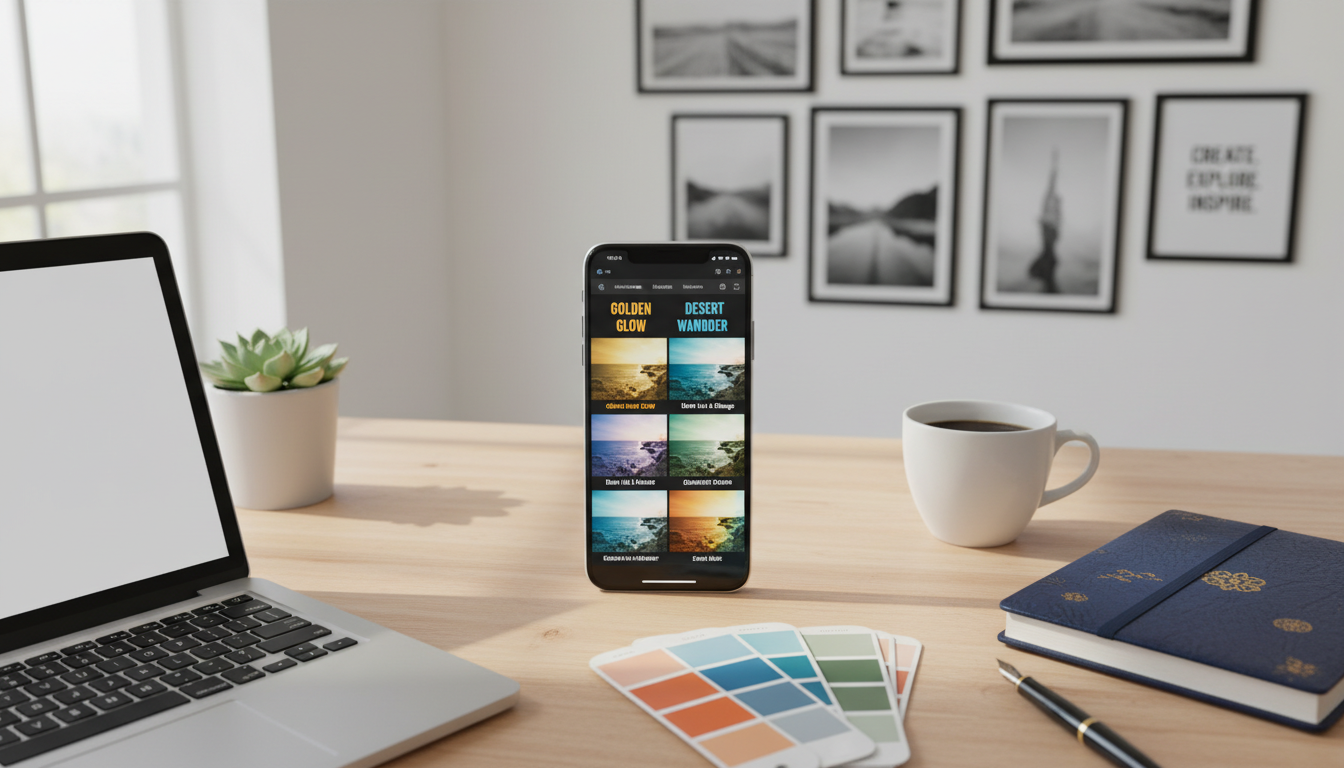
Smartphone photography has changed how we capture moments. Creators now want professional tools right in their pocket. They seek filters that give a polished, film-inspired look to their work.
The VSCO Cam app raised the bar for visual style. Its effects feel more refined than typical social media filters. Yet, it doesn’t offer direct tools for desktop or RAW file workflows.
This creates a challenge for shooters who use DSLRs. They wish to keep an all-RAW process without converting files. They need solutions that work inside programs like Adobe Lightroom.
This buyer’s guide helps you navigate that landscape. We’ll highlight places to find excellent profile collections, including resources like lpresets.com. You’ll discover how to achieve that coveted aesthetic while keeping full control over your editing.
We’ll cover key points like compatibility, easy installation, and workflow tips. You’ll learn how to pick the right tools for your unique photography style and technical needs.
Key Takeaways
- The need for high-quality, mobile-compatible editing tools is increasing.
- Photographers working with RAW files require options beyond basic app filters.
- Dedicated websites offer curated collections to achieve specific visual styles.
- Checking compatibility ensures a smooth addition to your creative process.
- Selecting the perfect set depends on your personal approach and the demands of your photos.
- Preserving original image quality is essential when applying stylistic changes.
- This article serves as a resource to simplify your search for the ideal creative toolkit.
Understanding the Mobile Preset Revolution
A quiet revolution in phone-based photo editing has redefined what’s possible for creators on the go. This shift empowers photographers to achieve professional results directly from their devices.
The Evolution from VSCO Cam to Lightroom Mobile
Editing moved beyond basic social media filters. Advanced mobile app options introduced a refined film aesthetic with natural tones.
This style became highly sought after, often signaled by tags like #VSCO on social platforms. The desire for this specific look created new demands.
The Benefits of an All-RAW Workflow
Shooters using DSLRs faced a big hurdle. Using popular phone app filters meant converting RAW files to JPEG first. This process is slow and harms final image quality.
An all-RAW workflow inside Adobe Camera Raw avoids this. It keeps all original sensor data. You get full dynamic range and non-destructive control.
Exact replicas of other app filters are impossible due to proprietary code. However, quality alternatives capture a similar spirit. Sites like lpresets.com offer curated VSCO preset alternative Lightroom mobile collections.
| Aspect | Legacy JPEG Workflow | Modern RAW Workflow |
|---|---|---|
| File Type | Compressed JPEG | Unprocessed RAW |
| Image Quality | Degraded after conversion | Maximum data preserved |
| Editing Flexibility | Limited, destructive | Full, non-destructive |
| Dynamic Range | Reduced | Full sensor range |
| Workflow Speed | Slow (conversion & transfer) | Fast (direct editing) |
Understanding both the mobile revolution and desktop workflow benefits is key. It helps you choose tools that match your creative goals.
Key Considerations When Choosing Lightroom Presets
Before you add any new creative tools to your editing software, a few practical checks can save you time.

Compatibility with Adobe Camera Raw and Lightroom Versions
Always verify a pack works with your specific software. Good collections provide separate preset files for Adobe Lightroom desktop and Adobe Camera Raw in Photoshop.
They also include mobile-ready files. Compatibility often spans Lightroom Classic 4-7, CC, and Photoshop CS6 onward. Sites like lpresets.com offer detailed charts.
Installation and Customization Best Practices
Follow the included instructions closely. Mac users may find automated installers. Windows users often copy files to a specific folder.
A common error is trying to load camera raw files into Lightroom. They are different file types and won’t work. Watching a provided video guide helps.
Once installed, use the settings panel to tweak effects. Adjust the tone curve for your unique image. This is the best way to make a preset your own.
| Format | Used In | Key Note |
|---|---|---|
| .lrtemplate | Lightroom Classic (older) | Legacy format, still functional |
| .xmp | Lightroom CC / Adobe Camera Raw | Modern, cross-version standard |
| .dng | Lightroom Mobile | Digital Negative file for phones |
For full support, check resources like lpresets.com. They clarify these technical versions and steps.
Exploring VSCO preset alternative Lightroom mobile Options
The search for a specific film-like look leads many to specialized resources. A comprehensive buyer’s guide can simplify this process.
Insights from lpresets.com and Their Buyer’s Guide
Websites like lpresets.com serve as a central hub. Their detailed guide compares features and compatibility across many collections.
It highlights free and paid pack options. For example, one free starter pack includes ten original effects.
Comparing Film Aesthetic and Editing Workflows
Different collections capture distinct film aesthetic qualities. Some give photos clean pastels with bluish-green shadows.
Others provide warm, muted tones or dramatic black and white looks. This variety suits portrait, lifestyle, and travel photography.
| Film Aesthetic | Key Characteristics | Best For | Inspiration |
|---|---|---|---|
| Warm & Muted | Soft contrast, creamy tones | Portraits, golden hour | Overexposed film stocks |
| Clean Pastels | Crisp shadows, cool palette | Skin tones, bright scenes | Fuji Professional films |
| Classic B&W | Medium contrast, deep blacks | Street, documentary | Ilford HP5 |
These tools help photographers maintain a consistent style. They work on both desktop and mobile for a unified editing flow.
Closing Insights for Your Mobile Preset Journey
Crafting a consistent aesthetic across your portfolio requires the right tools. Choosing Adobe Lightroom and Lightroom Classic options provides superior quality and full editing control. This professional way of working beats basic phone app filters.
Remember, every image is unique. Your camera, lighting, and settings change the final look. A little tweaking after applying a preset is normal and expected.
Don’t be afraid to experiment. Use the panel controls to adjust exposure, contrast, and tones. This personalizes the effect for your specific photography.
Investing in quality presets from trusted sources offers long-term value. You get lifetime updates and compatible files for all devices. This supports your growth as a creative.
Always shoot in RAW when possible. It gives your presets the most data to work with. Think of these tools as a learning guide to advanced editing techniques.
For ongoing support and new discoveries, visit lpresets.com. Explore their collections, read guides, and watch helpful video tutorials. It’s a great resource for photographers at any level.

