

Lightroom Mobile can be a genuinely useful wedding editing tool when you want quick previews, fast social-ready images, or a flexible workflow that starts on your phone and finishes on desktop later. The challenge is that wedding photos demand more than a generic mobile filter. Skin tones, white dresses, reception lighting, and mixed light can all fall apart fast if you rely on the wrong preset.
This guide walks through how to edit wedding photos in Lightroom Mobile so the images stay flattering, consistent, and polished without losing the natural emotion of the day.
Start With the Strongest Frame First
Before you edit, choose an image with clean emotion and usable light. Wedding presets work best when the base photo is already strong. If the dress is heavily clipped or the skin tones are deep in shadow, you will spend more time rescuing than improving.
Step 1: Balance the Exposure Before Applying the Preset
One of the biggest reasons mobile wedding edits look fake is that the preset is doing all the heavy lifting. On Lightroom Mobile, correct the base image first.
- pull back highlights to protect the dress and veil
- lift shadows carefully on darker suits and indoor portraits
- set whites so bright scenes still look luminous, not clipped
- adjust blacks based on whether the image should feel airy or moody
Step 2: Fix Skin Tones Before You Judge the Edit
Wedding clients notice skin first, not the preset name. If the couple looks too orange, too pink, or too grey, the edit feels wrong even if the color grading is stylish. Use temperature and tint to neutralize obvious shifts, then test the preset again.
Indoor getting-ready rooms, churches, and receptions often need this step before any preset can look good.
Step 3: Match the Preset to the Wedding Style
Wedding editing works best when the preset matches the scene and the couple’s aesthetic.
- bright and airy: ideal for outdoor ceremonies, window light, and romantic editorial portraits
- moody: better for indoor venues, receptions, historic locations, and dramatic evening scenes
- clean neutral: useful when you want flexibility and a timeless look across multiple lighting conditions
If you want broader options in one place, start with the wedding Lightroom presets hub.
Step 4: Protect the Dress and Soft Highlights
Wedding dresses are the easiest part of the image to ruin on mobile. A bright preset can make them glow in a good way, or wipe out all the texture. Lower highlights before you boost overall brightness, and check lace, folds, and edges of the veil at 100 percent if possible.
Step 5: Keep Indoor Warmth Without Making the Room Too Yellow
Lightroom Mobile is often used for quick reception edits. The temptation is to cool everything down and neutralize the room completely. That usually kills the mood. Instead, keep some of the warmth from candles or ambient bulbs while making sure faces still look believable.
Step 6: Use Selective Adjustments for Faces and Dresses
Even on mobile, small local edits matter. If the bride is near a window or one person is much brighter than the other, use masking to even things out. That usually gives a better result than forcing the entire image brighter or darker.
Best Presets for Lightroom Mobile Wedding Work
Mobile wedding editing works best with DNG presets that already fit common wedding scenarios. Strong starting options include:
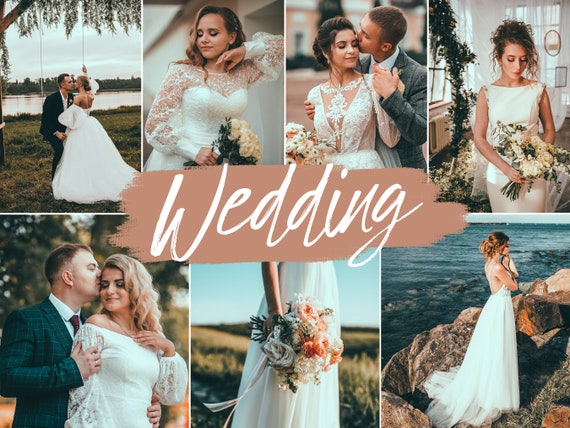 Recommended PresetWedding Lightroom Presets BundleView Preset
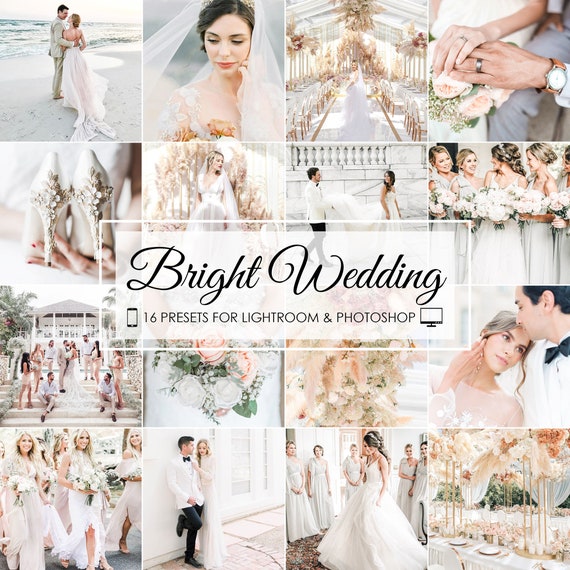 Recommended PresetBright Wedding Lightroom PresetsView Preset
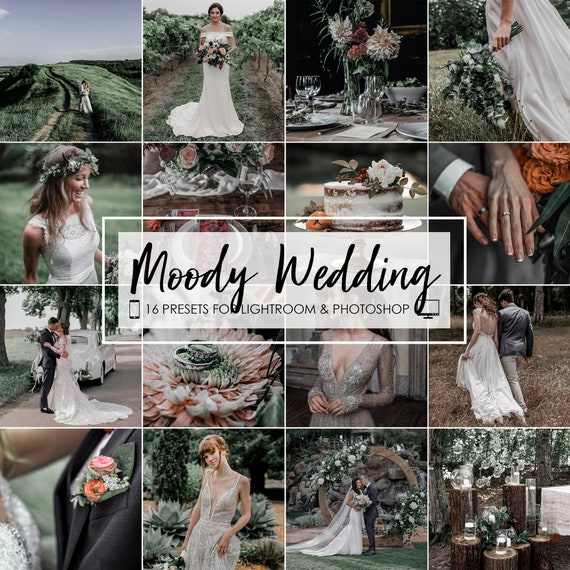 Recommended PresetMoody Wedding Lightroom PresetsView Preset
When to Finish on Desktop Instead
Lightroom Mobile is excellent for previews, quick edits, and fast delivery of highlight images, but desktop is still stronger when you need more refined masking, bulk consistency across a full gallery, or advanced color correction in mixed-light scenes.
Recommended Wedding Presets for Mobile Editing
Recommended PresetWedding Lightroom Presets — Mobile & Desktop BundleView PresetRecommended PresetBright Wedding Lightroom Presets — Mobile & DesktopView PresetRecommended PresetMoody Wedding Lightroom Presets — Mobile & DesktopView PresetFrequently Asked Questions About Editing Wedding Photos in Lightroom Mobile
Can I edit a full wedding in Lightroom Mobile?
You can, but many photographers still prefer desktop for full-gallery consistency and finer control.
What matters most in a mobile wedding edit?
Skin tones, dress detail, and matching the preset to the wedding’s style and lighting.
Do DNG presets work best for Lightroom Mobile weddings?
Yes. DNG presets are the most practical format for Lightroom Mobile workflows.

