

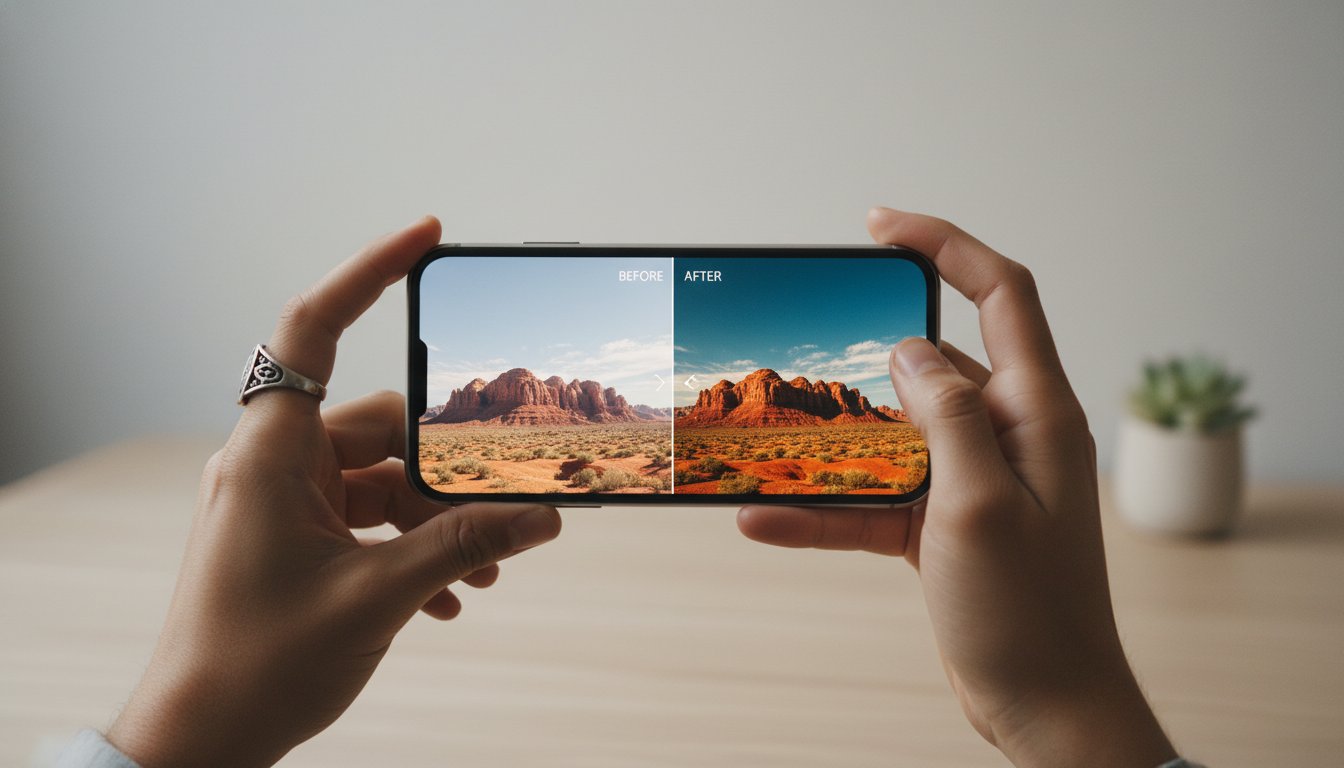
If you have downloaded Lightroom Mobile presets and found files ending in .dng, you are not alone. Many preset buyers expect a normal preset file and instead get what looks like a photo. That can feel confusing at first, but DNG files are one of the most common ways Lightroom Mobile presets are delivered.
This guide explains what a DNG file is, why it matters for presets, how it differs from XMP files, and how to use it correctly in Lightroom Mobile. The goal is simple: make DNG files feel easy instead of technical.
What Is a DNG File? (Explained in Plain English)
DNG stands for Digital Negative. It is an image format created by Adobe. In the context of presets, a DNG file usually acts like a sample image that already has preset settings saved inside it. That means it carries editing information such as color, tone, contrast, and profile settings.
When people talk about DNG presets, they usually mean Lightroom Mobile presets that are installed by importing a DNG image, copying its settings, and pasting those settings onto another photo.
Why DNG Files Matter for Lightroom Mobile
Desktop Lightroom usually imports presets directly through XMP files. Lightroom Mobile works differently, especially in the free app. A DNG file is the workaround that makes mobile preset installation easy. Since Lightroom Mobile can import photos, creators save the preset settings inside a DNG photo, and you copy those settings onto your own images.
That is why a DNG file may look like a normal image in your preset pack even though it is really there to carry the preset.
DNG vs XMP: What Is the Difference?
The difference is mostly about workflow:
- DNG files: used most often for Lightroom Mobile preset installation.
- XMP files: used most often for Lightroom Classic and Lightroom desktop.
If you want the full side-by-side comparison, read our dedicated guide on DNG vs XMP presets.
How to Use a DNG Preset in Lightroom Mobile
- Download the preset pack and unzip it if necessary.
- Save the DNG files to your phone.
- Import the DNG images into Lightroom Mobile.
- Open one DNG image and tap the three-dot menu.
- Choose Copy Settings.
- Open your own photo and choose Paste Settings.
- If you want to save the look, use Create Preset.
If you want a full install walkthrough, use our Lightroom preset installation guide.
Do DNG Files Work on Desktop Too?
They can be opened on desktop, but they are not the main desktop preset format. If you edit in Lightroom Classic or Lightroom desktop, you usually want XMP preset files instead. High-quality preset packs often include both file types so you can use the same style across mobile and desktop.
Why Your Preset Pack Includes DNG Files
A preset creator includes DNG files so mobile users can install presets without needing the desktop workflow. That makes them useful for creators editing on iPhone or Android, social media users who want fast edits on the go, and beginners who are using the free Lightroom Mobile app first.
Common DNG File Questions and Problems
Why does the DNG file look like a strange photo?
That is normal. The image is just the carrier for the preset settings.
Why can’t I import the preset like an XMP file?
Because Lightroom Mobile usually uses the DNG copy-and-paste workflow instead of the desktop import workflow.
Why does the preset look different on my image?
Presets always depend on the original photo. Exposure, white balance, lighting, and subject matter all change the result.
Is a DNG file the same as a RAW photo?
Not always in practice. DNG is a RAW-capable format, but in preset packs it is usually being used as the container for saved settings.
When You Should Use DNG Files Instead of XMP Files
Use DNG files when you edit in Lightroom Mobile. Use XMP files when you edit in Lightroom Classic or Lightroom desktop. If your preset pack includes both, you have the full workflow covered across devices.
What to Try After You Understand DNG Files
Once DNG files make sense, choosing the right preset pack becomes much easier. You can test styles with our free Lightroom presets, compare broader preset bundles, or jump into niche collections like car Lightroom presets, wedding Lightroom presets, and real estate Lightroom presets.
Frequently Asked Questions About DNG Files
Do I need DNG files for Lightroom Mobile?
Usually yes, especially if the preset pack is made for mobile installation.
Can I turn a DNG file into a saved preset?
Yes. Copy its settings, paste them onto your image, then save the result as a preset in Lightroom Mobile.
Are DNG presets beginner-friendly?
Yes. Once you know the copy-and-paste method, they are simple to use.
Should I keep both DNG and XMP files?
Yes, if you edit across mobile and desktop.
DNG Files Are Simpler Than They Look
A DNG file is not something to worry about. It is just the mobile-friendly way many preset creators deliver Lightroom settings. Once you understand that, preset installation becomes much easier and the rest of the Lightroom workflow starts to feel much more manageable.

